

AMC Portal Dashboard Tutorial
A practical walkthrough for AMC contractors on signing in and using the Weqayah AMC Portal.
Table of Contents
About the AMC Portal
From here your company manages the premises you maintain: their schedules, NOC certificates, and new customer registrations. The sections below walk through each part of the portal.
1. Logging into the AMC Portal
How to Log In
- Open your web browser and go to the Weqayah website.
- Click on the Login button in the top navigation bar.
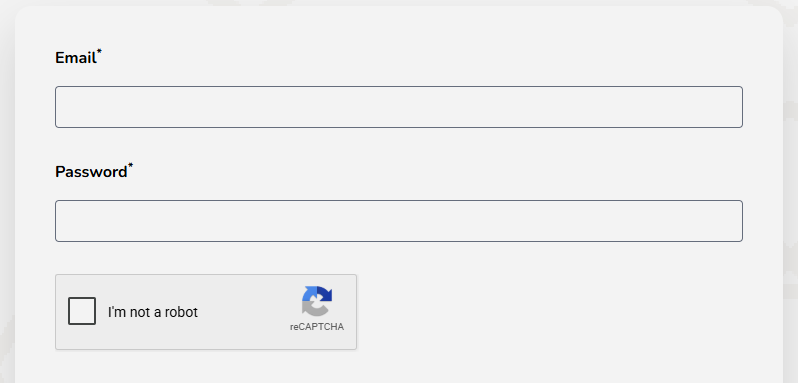
- Enter the email address and password that was provided to you by Weqayah.
- Click Sign In to access your AMC Portal dashboard.
Note: Your login credentials were sent to you via email when your AMC company was registered in the Weqayah system. If you have not received your credentials or have forgotten your password, use the "Forgot Password?" link on the login page, or contact Weqayah support.
2. Dashboard Overview
Your AMC Dashboard
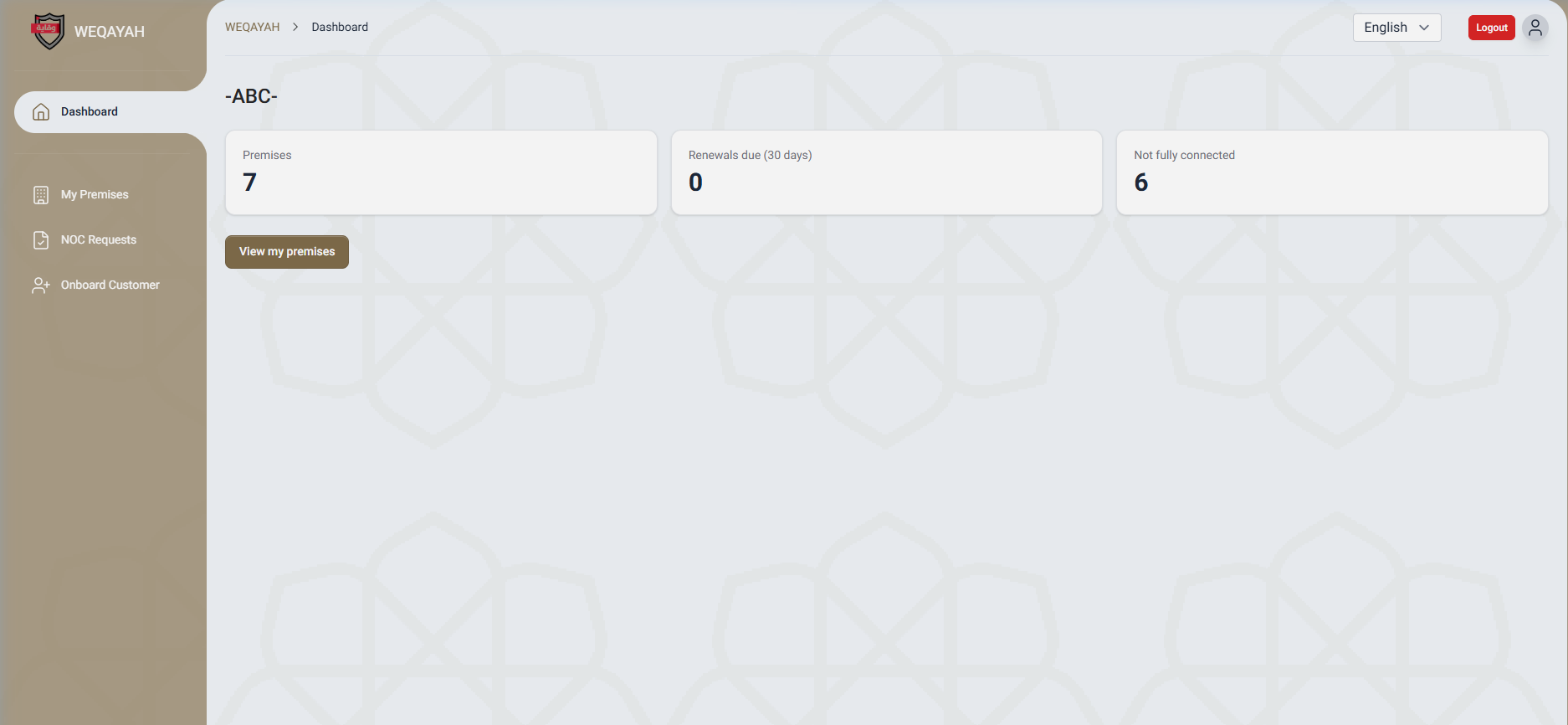
After logging in, you will land on your AMC Dashboard. This page gives you a quick overview of your company's portfolio:
- Company Name — Displayed at the top of the page, confirming which AMC company you are logged in as.
- Premises — The total number of premises under your maintenance contract.
- Renewals due (30 days) — The number of premises with annual renewal dates coming up within the next 30 days.
- Not fully connected — The number of premises where the fire alarm system is not yet fully installed and connected to the Weqayah monitoring center.
Click "View my premises" to navigate to the full premises list.
Sidebar Navigation
The sidebar on the left has these pages:
Overview of your AMC company stats and quick access to premises.
Full list of all premises under your AMC contract with actions.
View installation/maintenance visit schedules and sync with your calendar.
View NOC certificates for your premises and request new NOCs.
Generate invitation links for building owners to grant maintenance access.
Register a new customer and their premises into the Weqayah system.
3. My Premises
Viewing Your Premises
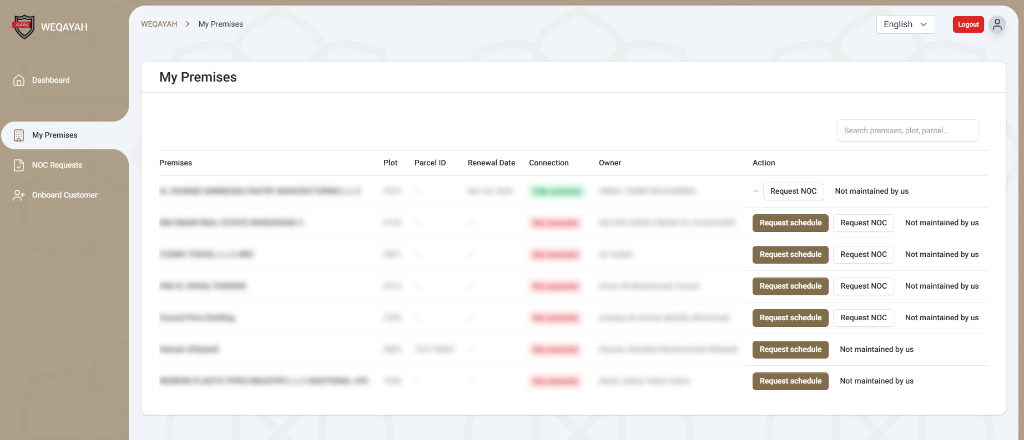
The My Premises page shows all the properties under your AMC maintenance contract. The table includes:
- Premises — The name of the building or property.
- Plot — The plot number of the premises.
- Parcel ID — The unique parcel identification number.
- Renewal Date — The date when the annual maintenance contract comes up for renewal.
- Connection — The connection status of the fire alarm system (Fully connected, Partially connected, or Not connected).
- Owner — The name of the building owner.
- Action — Available actions for each premises (described below).
Searching Premises
Use the search box at the top of the table to quickly find a specific premises. You can search by premises name, plot number, or parcel ID. The results update automatically as you type.
4. Request a Maintenance Schedule
How to Request a Schedule
If a premises is not yet fully installed or connected, you can request a maintenance/installation schedule from the Weqayah team:
- Go to My Premises from the sidebar menu.
- Find the premises that needs installation or maintenance.
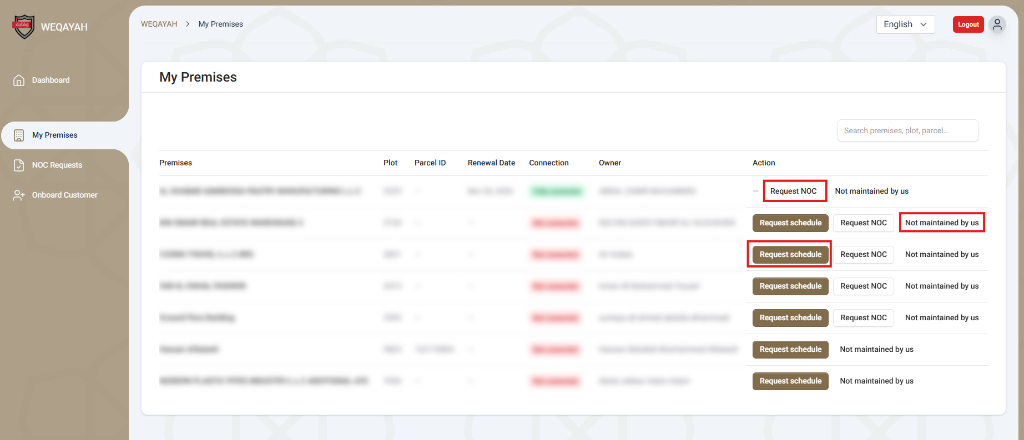
- Look at the Action column — you will see a "Request schedule" button for premises that are not fully connected.
- Click the "Request schedule" button.
- The Weqayah team will receive your request and schedule a visit.
Note: Once you have requested a schedule, a "Requested" badge appears next to the premises. You can request once per premises every 24 hours.
Fully connected premises: If a premises is already fully connected, the "Request schedule" button will not appear, as no installation or maintenance visit is needed.
5. Remove Premises
How to Remove Premises
If a premises is no longer maintained by your AMC company, you can release it from your list:
- Go to My Premises from the sidebar menu.
- Find the premises you no longer maintain.
- Click the "Not maintained by us" button in the Action column.
- A confirmation dialog will appear asking you to confirm the release.
- Click confirm to release the premises. It will be removed from your list.
Important: This action cannot be undone by you. The premises will be marked as unassigned and will be removed from your premises list. A Weqayah administrator will need to reassign it to the correct AMC company if needed.
6. Maintenance Schedules & Calendar Feed
Overview of Schedules Feed
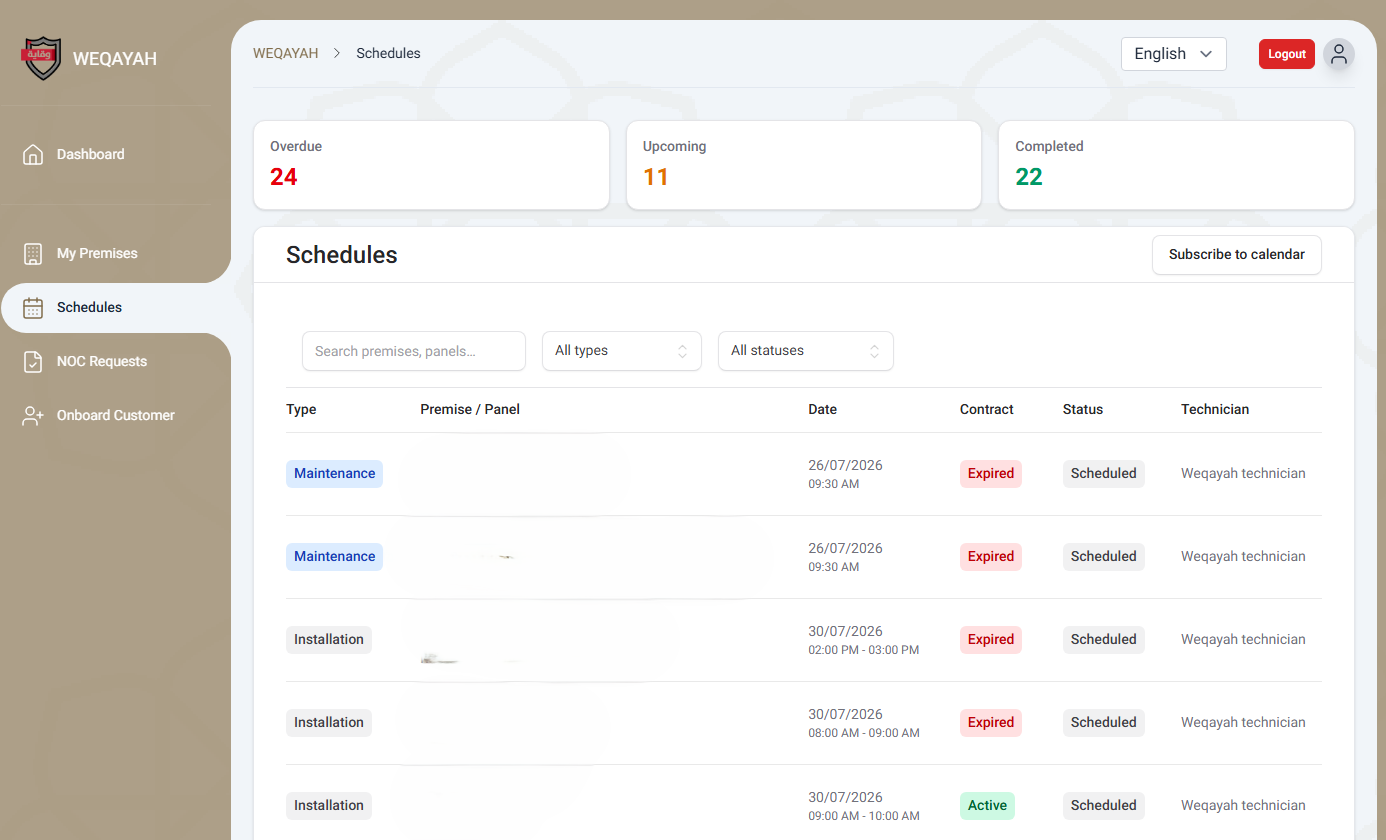
The Schedules page lists every installation and maintenance visit for the premises assigned to your company, upcoming and past. Upcoming visits are shown first.
Overdue
Scheduled date passed
Upcoming
Future visits
Completed
Finished visits
- Search & Filter — Search by premise name, panel code, or parcel ID, and filter by Visit Type or Status.
- Not My Premise? — Click the "Not my premise?" link to report a misassigned premise to Weqayah.
Real-Time Calendar Sync (iCal / ICS Feed)
You can pull your visit schedules into Apple Calendar, Google Calendar, Outlook, or your phone:
- Click the "Subscribe to calendar" button at the top of the Schedules page to download your visit schedule as a calendar file (.ics).
- To receive live updates instead, right-click the button (or long-press on mobile) and choose "Copy link address" to copy your secure calendar feed URL.
- Add the copied URL to your calendar app (e.g., Google Calendar "From URL", or Apple Calendar "New Calendar Subscription").
- Save to automatically receive live visit schedule updates directly on your devices!
7. Request a NOC
How to Request a NOC
You can request a No Objection Certificate (NOC) on behalf of a premises you maintain:
- Go to My Premises from the sidebar menu.
- Find the premises that needs an NOC.
- Click the "Request NOC" button in the Action column.
- You will be taken to the NOC Request page where the premises is pre-selected.
- Select the reason for the NOC request from the dropdown (e.g., Municipality, Civil Defence, SIRA, or Other authority).
- If you selected "Other authority", type the name of the authority in the text field.
- Click the "Submit NOC Request" button.
Important: NOC requests submitted by AMC companies require manual approval by a Weqayah agent. They are never auto-approved. You will be notified once the request is reviewed.
When the "Request NOC" Button is Not Available
The "Request NOC" button will not appear if:
- The premises already has an active NOC or a pending NOC request.
- The premises does not meet the prerequisites for an NOC (e.g., device not installed, not connected).
- The Parcel ID is missing from the premises record.
8. View NOC Certificates
NOC Certificates Page
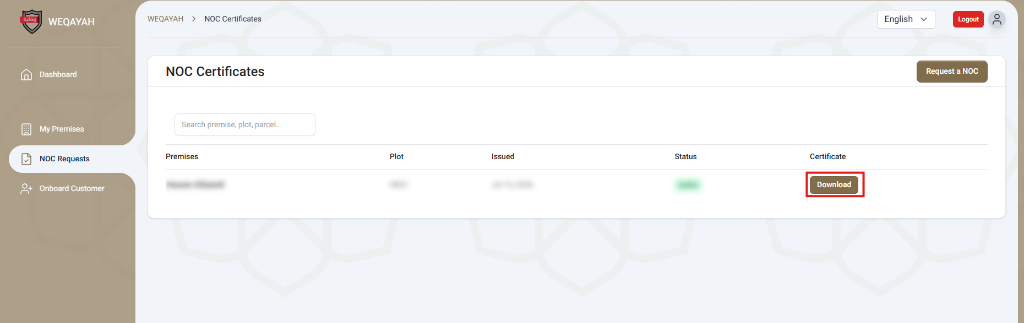
The NOC Requests page (accessible from the sidebar) shows all active NOC certificates for premises under your maintenance contract:
- Premises — The name of the premises the NOC was issued for.
- Plot — The plot number.
- Issued — The date the NOC certificate was issued.
- Status — The status of the NOC (Active or Expired).
- Download — Click to download the NOC certificate as a PDF.
Note: This page shows all active NOC certificates for your premises, regardless of who requested them (owner, customer, agent, or AMC). NOC certificates are valid for 6 months from the date of issuance.
9. Add Customers via Invitation Links
1. Generating & Sharing Invitation Links
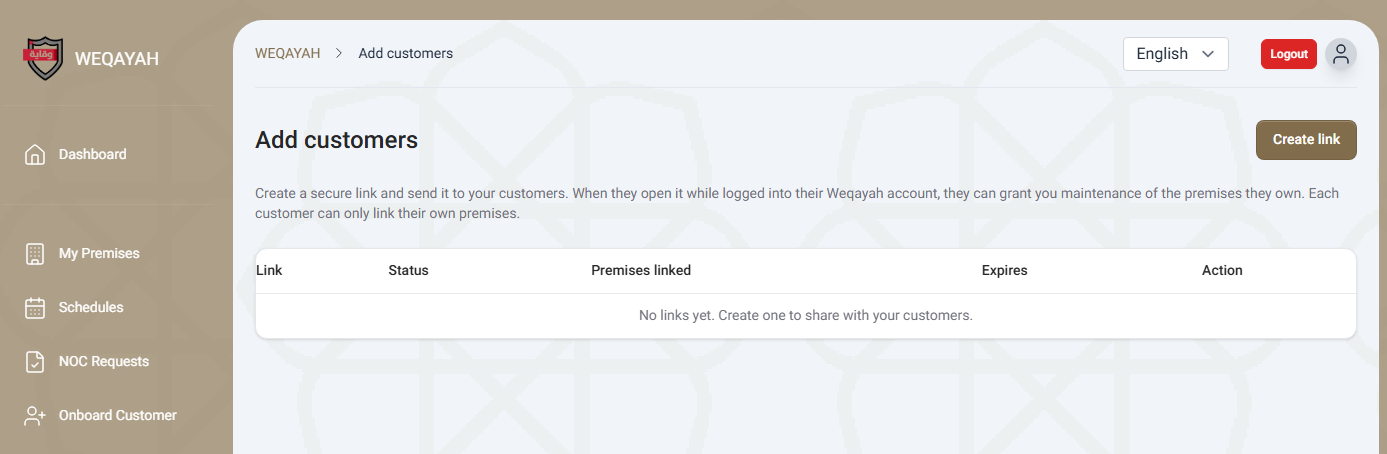
Use Add Customers to invite building owners to hand their premises over to your company for maintenance.
- Open "Add Customers" using the "Add customers" button on your AMC Dashboard.
- Click the "Create link" button at top right.
- Click "Copy" next to the generated 30-day link and send it to your building owner via WhatsApp, email, or SMS.
- Monitor active links, expiration dates, and total premises linked in your table.
2. Customer Premises Selection & Grant (Customer Experience)
When the building owner opens your invitation link while logged into their Weqayah customer account:
- Premises Selection — The customer is presented with a list of all premises registered under their account.
- Granting Maintenance — The customer checks off the premises they want to assign to your AMC company and clicks "Link Premises".
- Instant Transfer — The selected premises drop into your AMC Portal premises list immediately, showing the owner's name.
Safety & Control Features
- 30-Day Link Expiration — Every invitation link automatically expires 30 days after creation.
- Manual Revocation — If a link was shared with the wrong person, click "Disable" to revoke it instantly.
- 72-Hour Customer Revert Window — If an owner grants access by mistake, they have 72 hours to undo it and restore their previous settings.
10. Register a New Customer
Register a new building owner (customer) and their premises in the Weqayah system. It takes three steps:
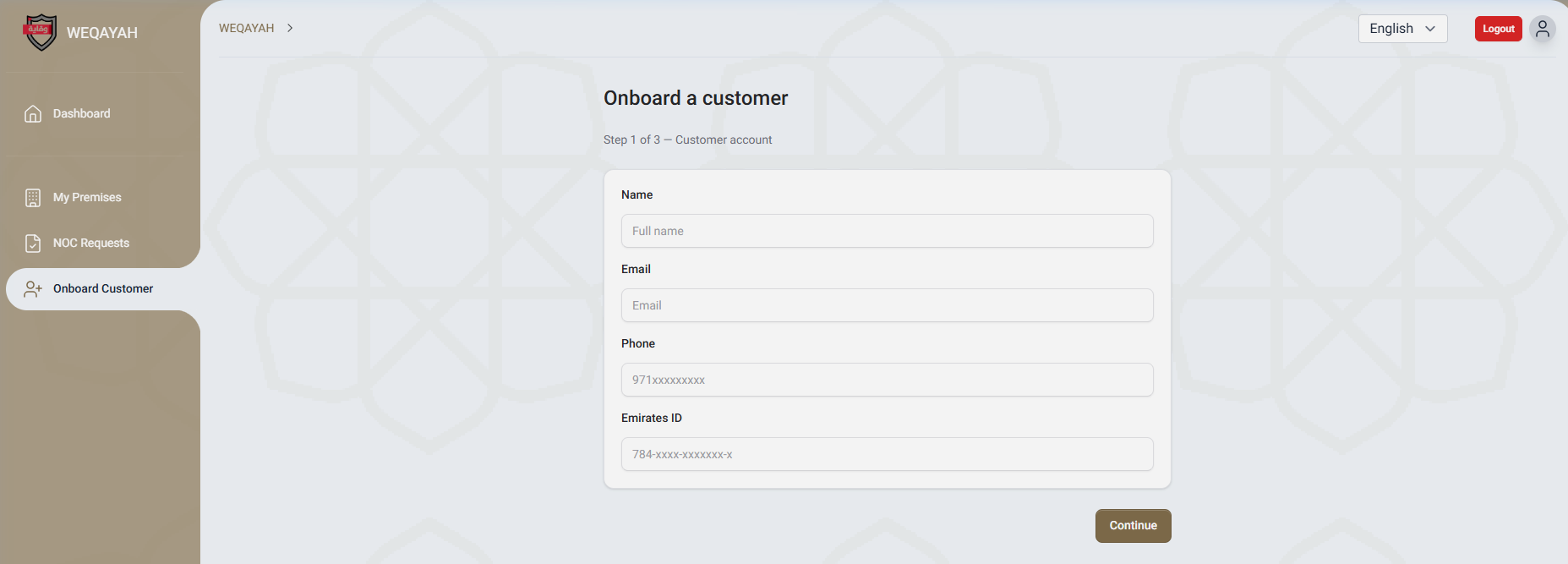
Step 1: Customer Account
Enter the customer (building owner) details:
- Full Name — The customer's full name.
- Email — The customer's email address (will be used for their Weqayah login).
- Phone — The customer's phone number in UAE format.
- Emirates ID — The customer's UAE Emirates ID number (required for payment processing).
If the customer already has a Weqayah account with this email, the system will link to their existing account. Otherwise, a new customer account will be created.
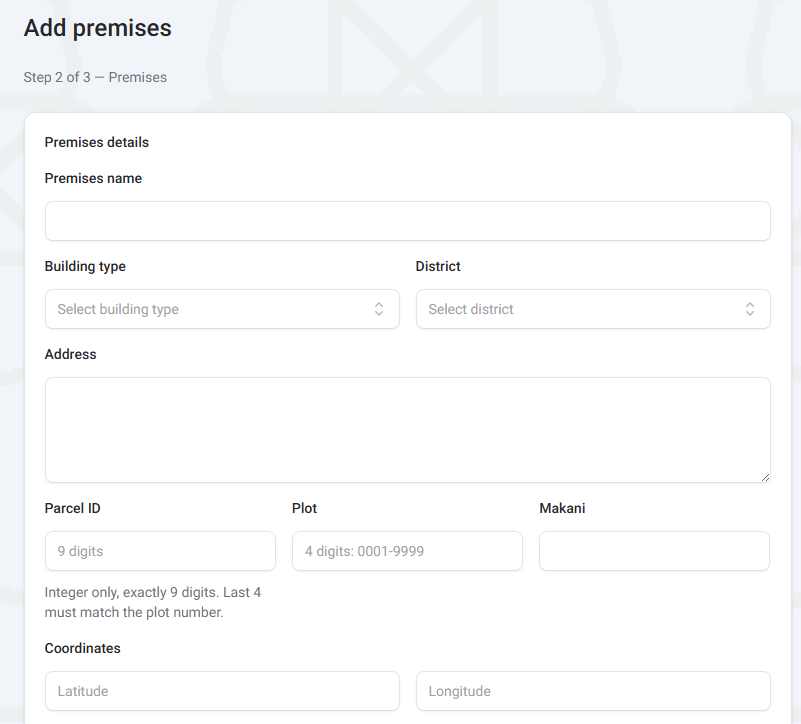
Step 2: Premises Details
Fill in the property/building details:
Property Information
- Building/Premises Name
- Business Type
- Building Type
- District
- Address
- Makani Number (optional)
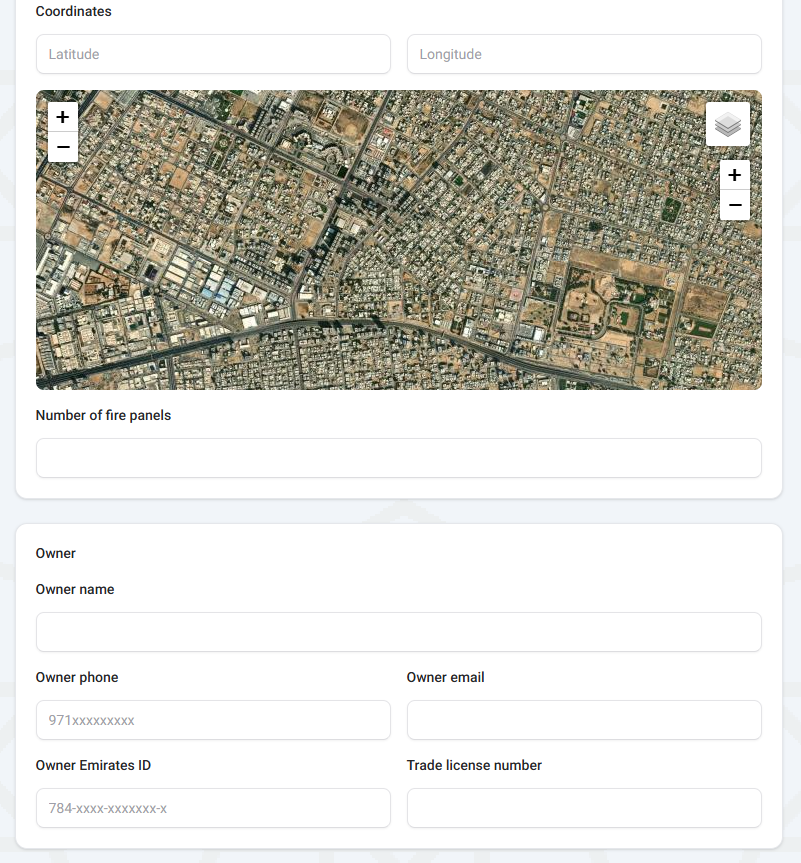
- Location (Latitude/Longitude)
- Plot Number
- Parcel ID
- Number of Fire Panels
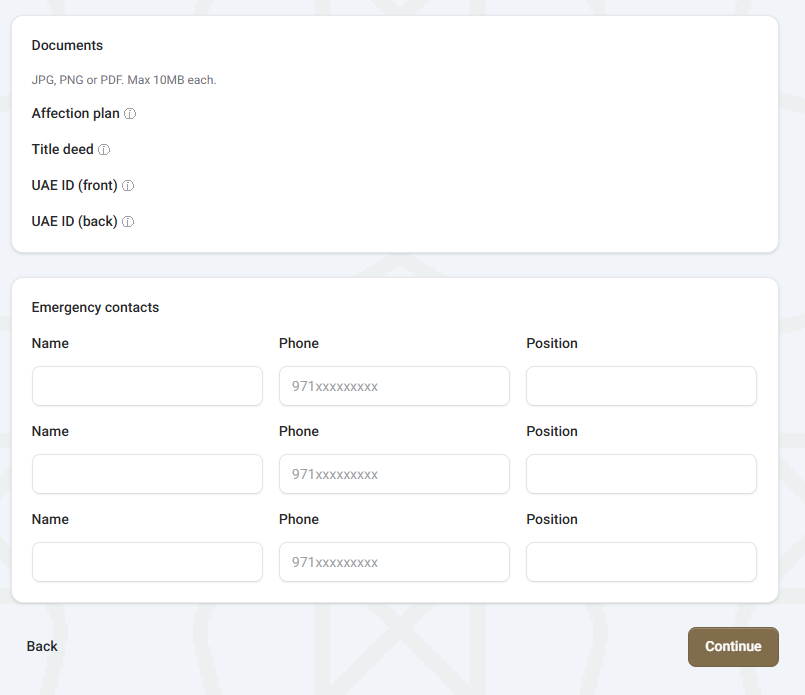
Owner & Documents
- Owner Name, Phone, Email, and Emirates ID
- Trade License Number (optional)
- Affection Plan (upload)
- Title Deed (upload)
- UAE ID Front/Back images (upload)
Emergency Contacts
- 3 emergency contacts required (Name, Phone, Position)
- Each contact must have a unique phone number
Important: The plot number must be exactly 4 digits, and the last 4 digits of the Parcel ID must match the plot number. The location must be within Ajman emirate boundaries. A premises with the same parcel or plot cannot be registered twice.
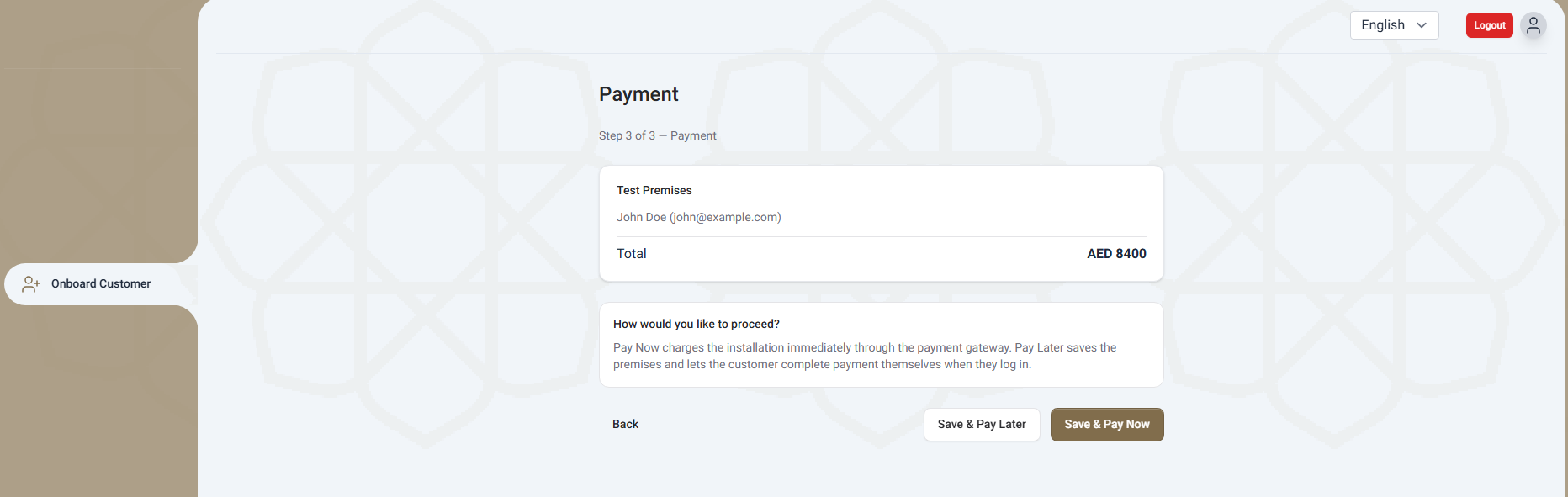
Step 3: Payment
The final step is the installation payment. You have two options:
Pay Now
Pay the installation fee now. You will be redirected to the payment gateway (AjmanPay or Magnati), and once payment goes through, the premises is registered and ready for scheduling.
Pay Later
Save the premises without paying now. The premises will be registered, and the customer can complete the payment themselves when they log in to their own Weqayah account.
Note: The payment amount is calculated based on the number of fire panels in the premises. The payer of record is always the building owner/customer, not the AMC company.
Frequently Asked Questions
I forgot my AMC portal password. What should I do?
Click "Forgot Password?" on the login page and enter your AMC email to get a reset link. If you still cannot sign in, contact Weqayah support.
Why do I see "No AMC company is linked to your account"?
This means your Weqayah user account has not been linked to an AMC company record yet. Please contact Weqayah support to link your account.
Why can't I see all the premises I maintain?
Premises are linked to your AMC company through the premises record. If a premises is missing from your list, it may have an incorrect or missing AMC company assignment. Contact Weqayah support to have it corrected.
How can I sync my maintenance schedules to my personal or company calendar?
Navigate to the "Schedules" page in the AMC portal and click "Subscribe to calendar" to download your schedule. To sync live updates, right-click the button, choose "Copy link address", and add the copied URL as a calendar subscription in Google Calendar, Apple Calendar, or Outlook.
What is the "Add Customers" invitation link and how does it work?
It is a link your company generates and sends to a building owner. When they open it while signed in to their Weqayah account, they choose which premises to hand over to you for maintenance.
What should I do if a premise in my Schedule list does not belong to my AMC company?
Click the "Not my premise?" link listed under the premise title on the Schedules page. This logs the mismatch so the Weqayah team can review and correct the company mapping.
How long does it take for an AMC-submitted NOC to be approved?
AMC-submitted NOC requests are reviewed by a Weqayah agent and are processed within a maximum of 5 working days, provided all requirements are met. AMC requests are never auto-approved.
I accidentally removed a premises. Can I undo it?
No. Once a premises is released, it is removed from your AMC company and becomes unassigned. A Weqayah administrator must reassign it back to your company. Please contact Weqayah support.
Can I register a customer who already has a Weqayah account?
Yes. If you enter an email that already belongs to a registered customer, the system will link the new premises to their existing account rather than creating a duplicate account.
Who should I contact for technical support?
For any questions or assistance, please contact Weqayah support:
Email: info@weqayah.ae
Email: Sania@weqayah.ae