

Getting Started Tutorial
Everything you need to create your account, register your building, and pay — all in one place.
Table of Contents
Part 1: Registration
Part 2: Add Premises
About this guide
This guide walks you through the full customer journey in three parts: creating your Weqayah account, registering a building, and paying for installation or renewal. Work through them in order, or jump to the section you need.
Part 1: Registration
Before You Begin
Have the following ready before you start:
- Emirates ID (EID) — Your UAE Emirates ID number in the format 784-xxxx-xxxxxxx-x.
- UAE Mobile Number — A mobile number you can receive text messages on, in the format 9715xxxxxxxx.
- Email Address — An email address you can access, used as your login and for verification.
- Trade License — Only required if you are registering on behalf of a company.
1. Open the Registration Page
- Open your web browser and go to the Weqayah website.
- Click the "Login" button in the top navigation bar.
- On the login page, click the "Register" link to open the registration form.
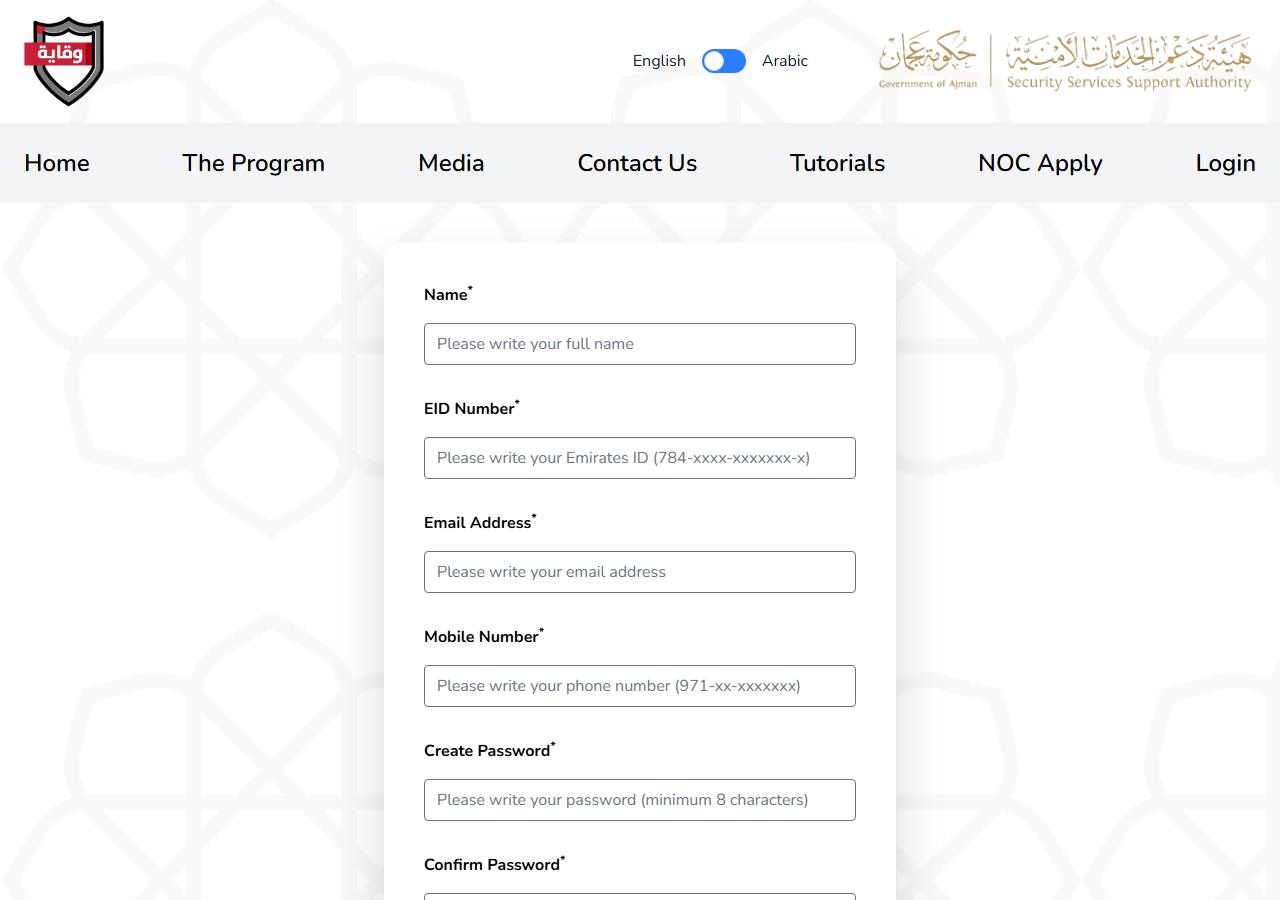
2. Enter Your Personal Details
Fill in the following fields:
- Name — Your full name (first and last name).
- EID Number — Your Emirates ID in the format 784-xxxx-xxxxxxx-x.
- Email Address — This will be your Weqayah login.
- Mobile Number — A UAE mobile number in the format 9715xxxxxxxx.
- Create Password & Confirm Password — Choose a password of at least 8 characters and enter it twice.
Note: Each email, mobile number, and Emirates ID can only be used for one Weqayah account.
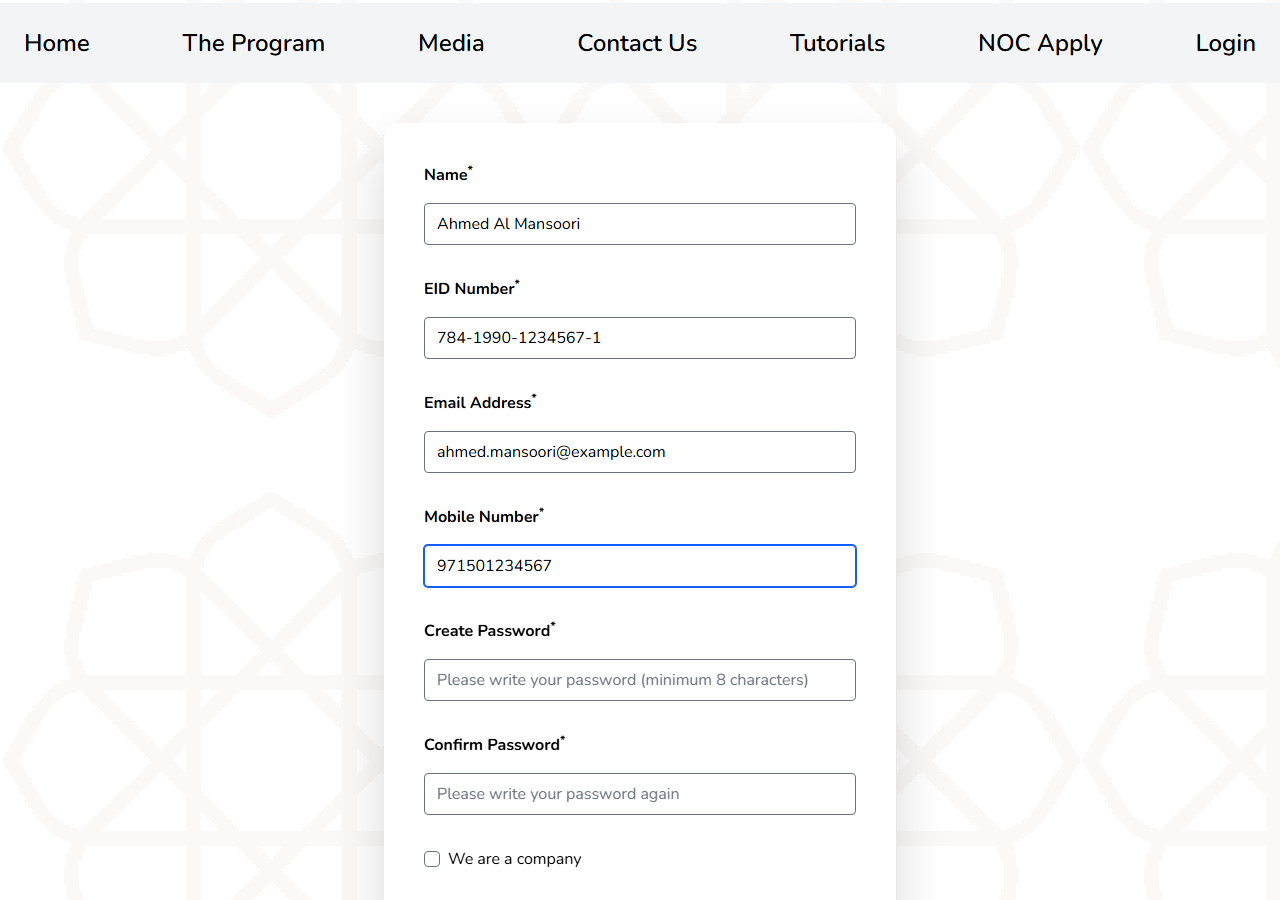
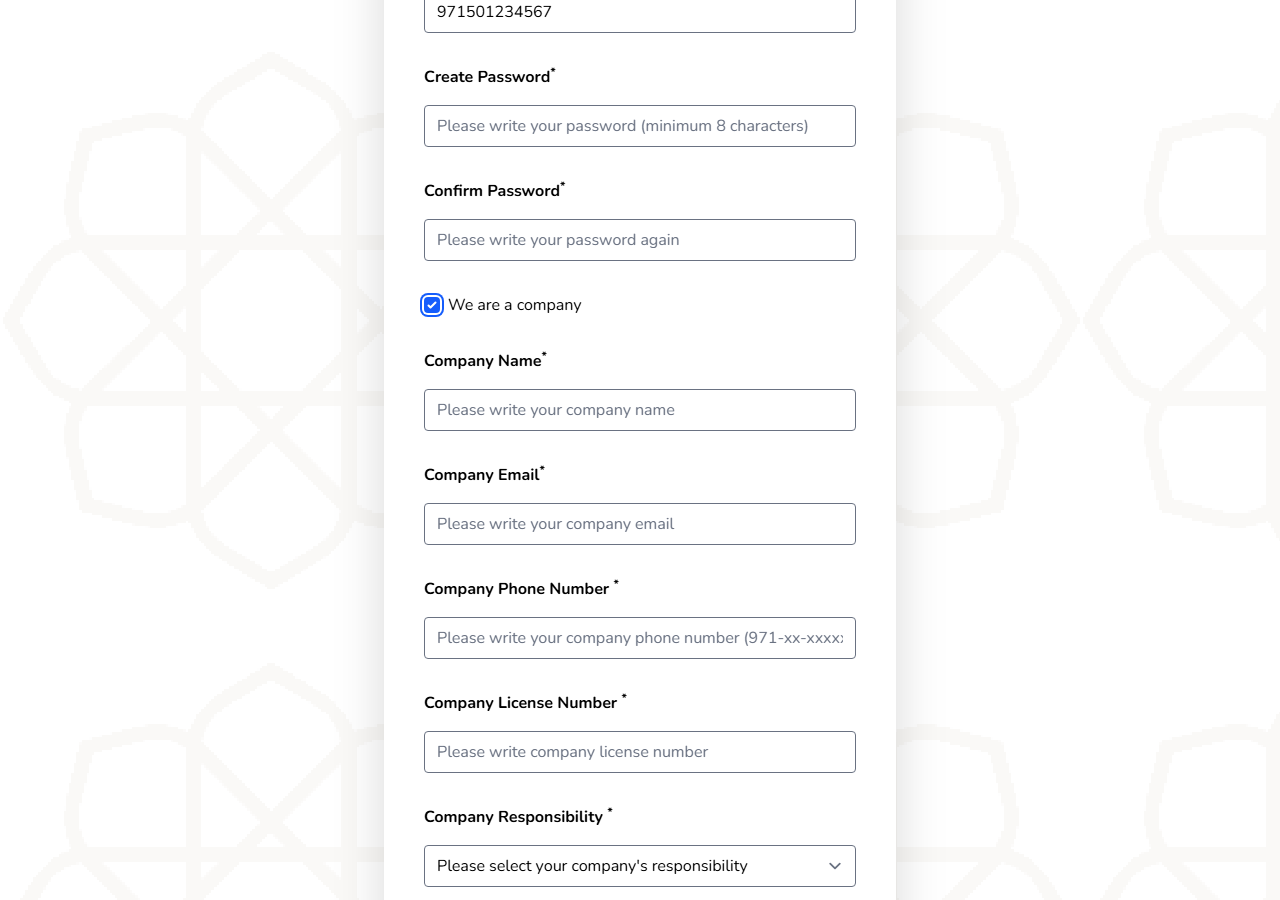
3. Company Accounts (Optional)
If you are registering on behalf of a company, tick the "We are a company" checkbox. Extra fields will appear:
- Company Name
- Company Email
- Company Phone Number — 971 format
- Company License Number
- Company Responsibility — Select from the available options.
Individual building owners can skip this section entirely.
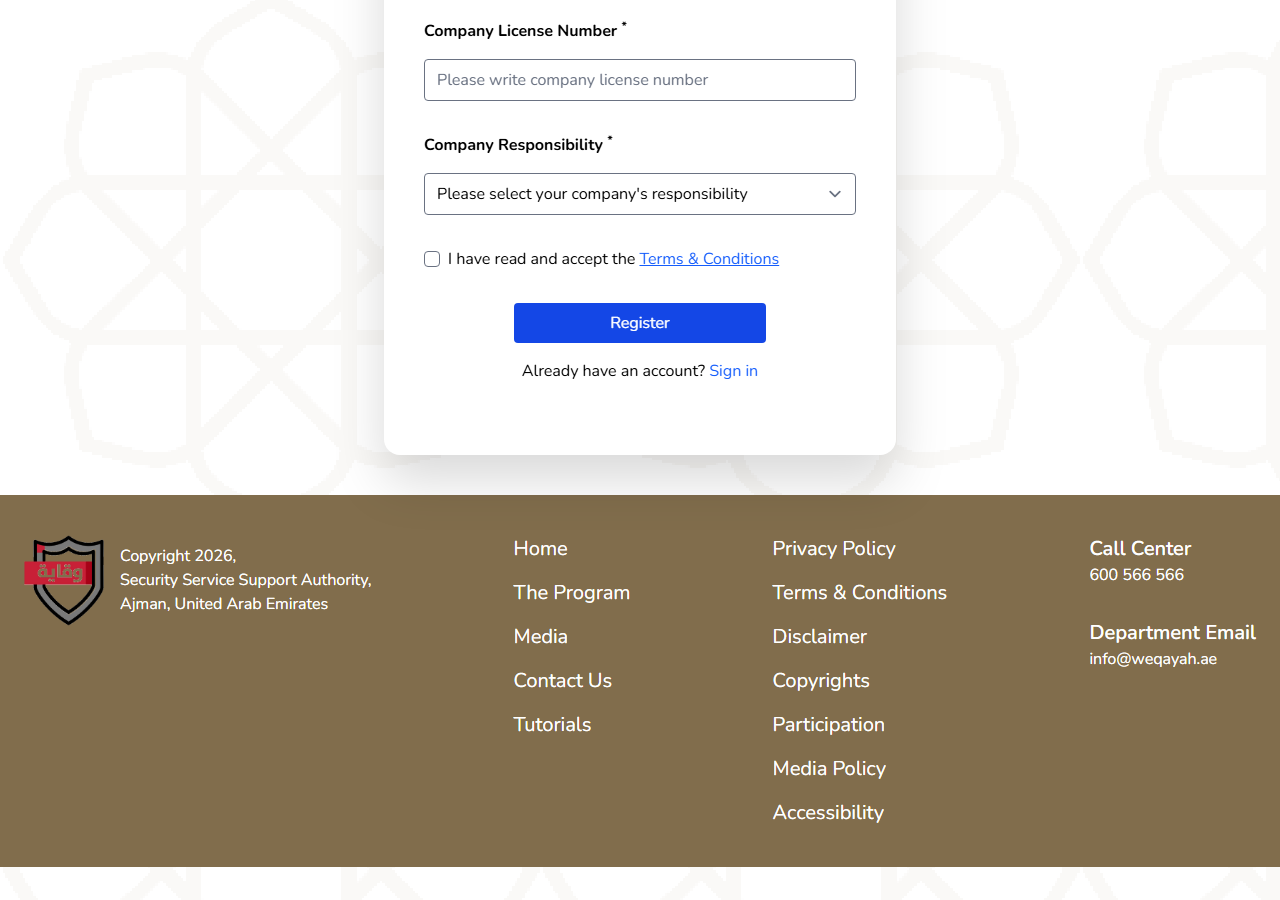
4. Accept the Terms & Register
- Read the Terms & Conditions linked on the form.
- Tick the checkbox to confirm you accept them.
- Click the "Register" button to create your account.
You will be signed in and taken to the verification step.
5. Verify Your Email & Mobile Number
For security, you must verify both your email address and your mobile number before you can use your account:
- Email — Enter the 6-digit OTP sent to your email and click Verify.
- Mobile — Enter the 6-digit OTP sent to your phone by text message and click Verify.
Important: You will not be able to access your premises or any customer features until both your email and mobile number are verified. You can request a new OTP from the verification page.
Part 2: Add Premises
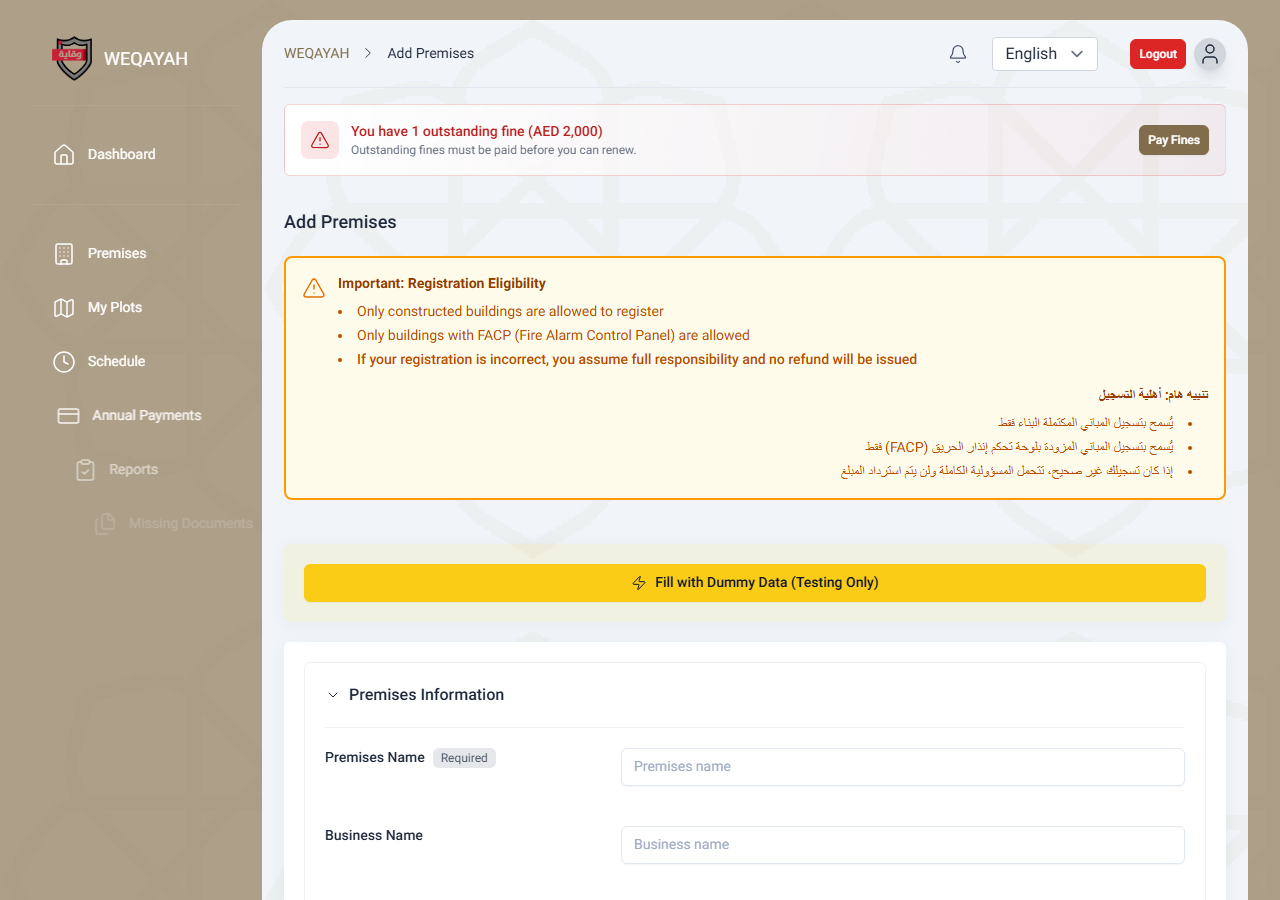
Important: Registration Eligibility
- Only constructed buildings are allowed to register.
- Only buildings with a Fire Alarm Control Panel (FACP) are allowed to register.
- If your registration is incorrect, you assume full responsibility and no refund will be issued.
1. Before You Begin
Have the following ready before you start:
- Plot Number — Exactly 4 digits (from 0001 to 9999).
- Parcel ID — Exactly 9 digits. The last 4 digits must match your Plot Number.
- Building location — The building must be inside the Ajman emirate boundary.
- Owner documents — Affection Plan, Title Deed, and the owner's UAE ID (front and back).
- Three emergency contacts — Each with a unique phone number.
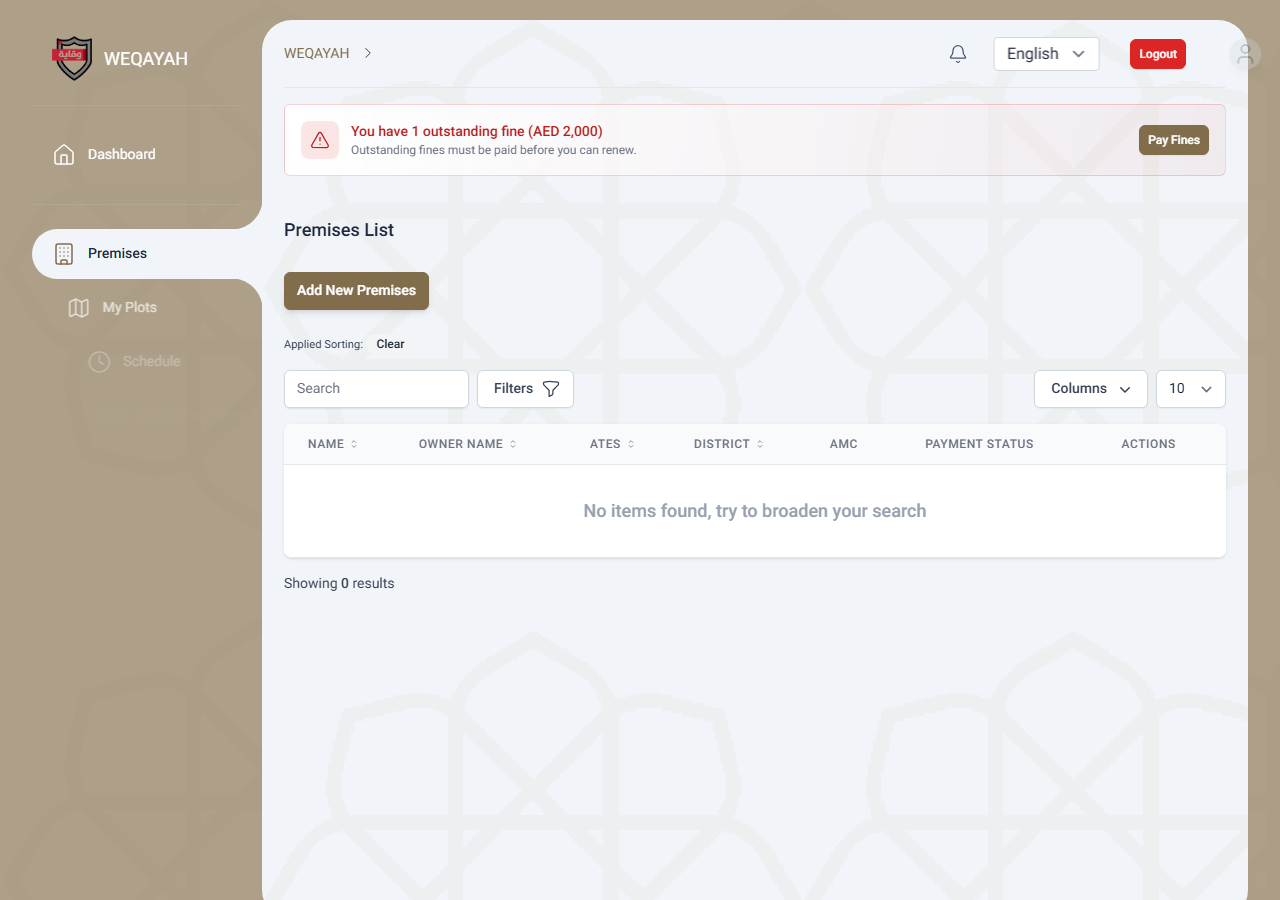
2. Open "Add Premises"
- Sign in to your Weqayah account and go to your dashboard.
- Open "Premises" from the menu.
- Click the "Add New Premises" button to open the registration form.
3. Premises Information
Enter the building details:
- Premises Name — The name of the building or property.
- Building Type & District — Select from the dropdown lists.
- Address
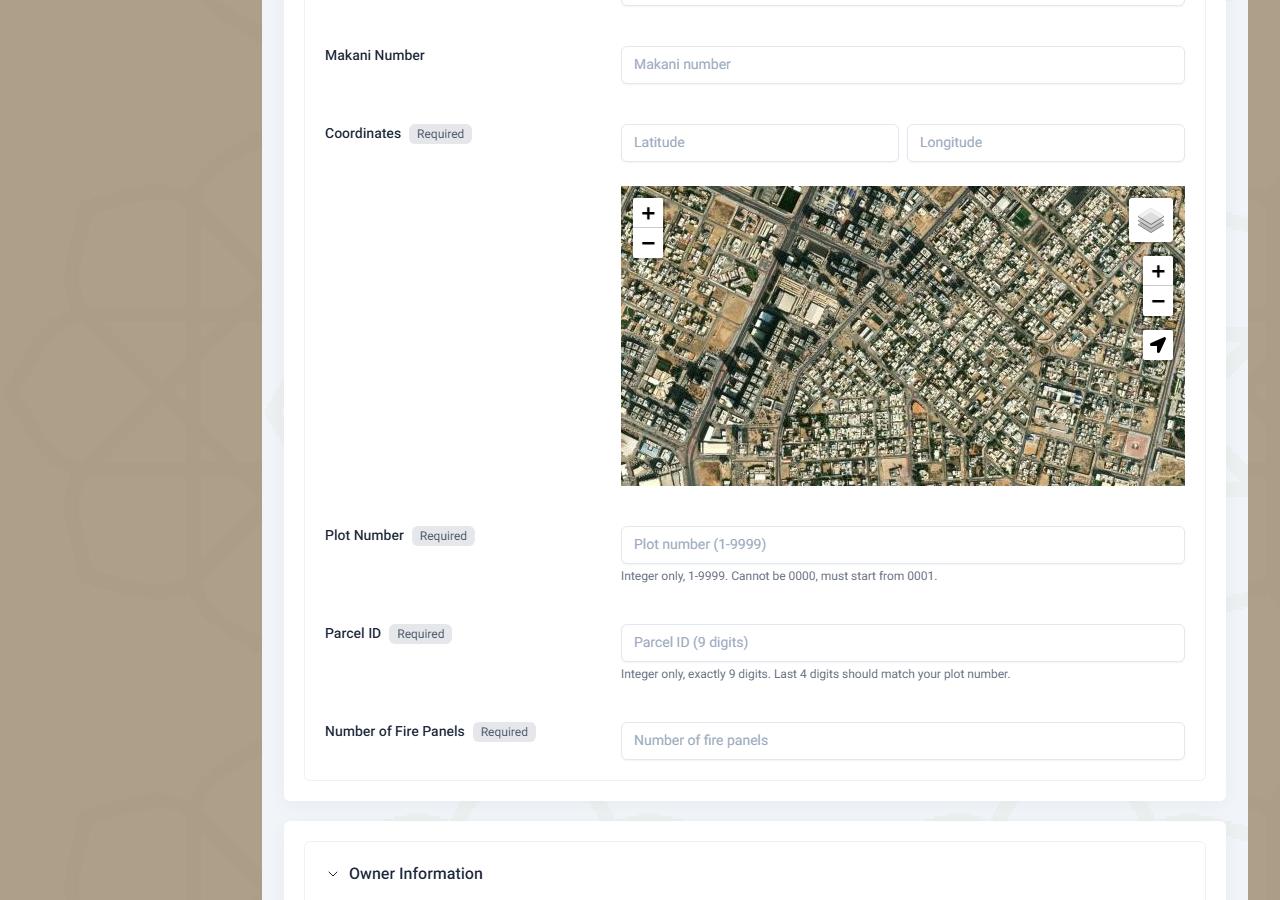
- Makani Number — Optional, 10-digit number.
- Coordinates — Set the location on the map. The marker must be inside Ajman emirate.
- Plot Number — Exactly 4 digits (0001–9999, cannot be 0000).
- Parcel ID — Exactly 9 digits; the last 4 must match your Plot Number.
- Number of Fire Panels — At least 1. This sets your price.
Important: A premises with the same plot/district or Parcel ID cannot be registered twice. If yours already exists, please contact the registration department.
4. Owner Information
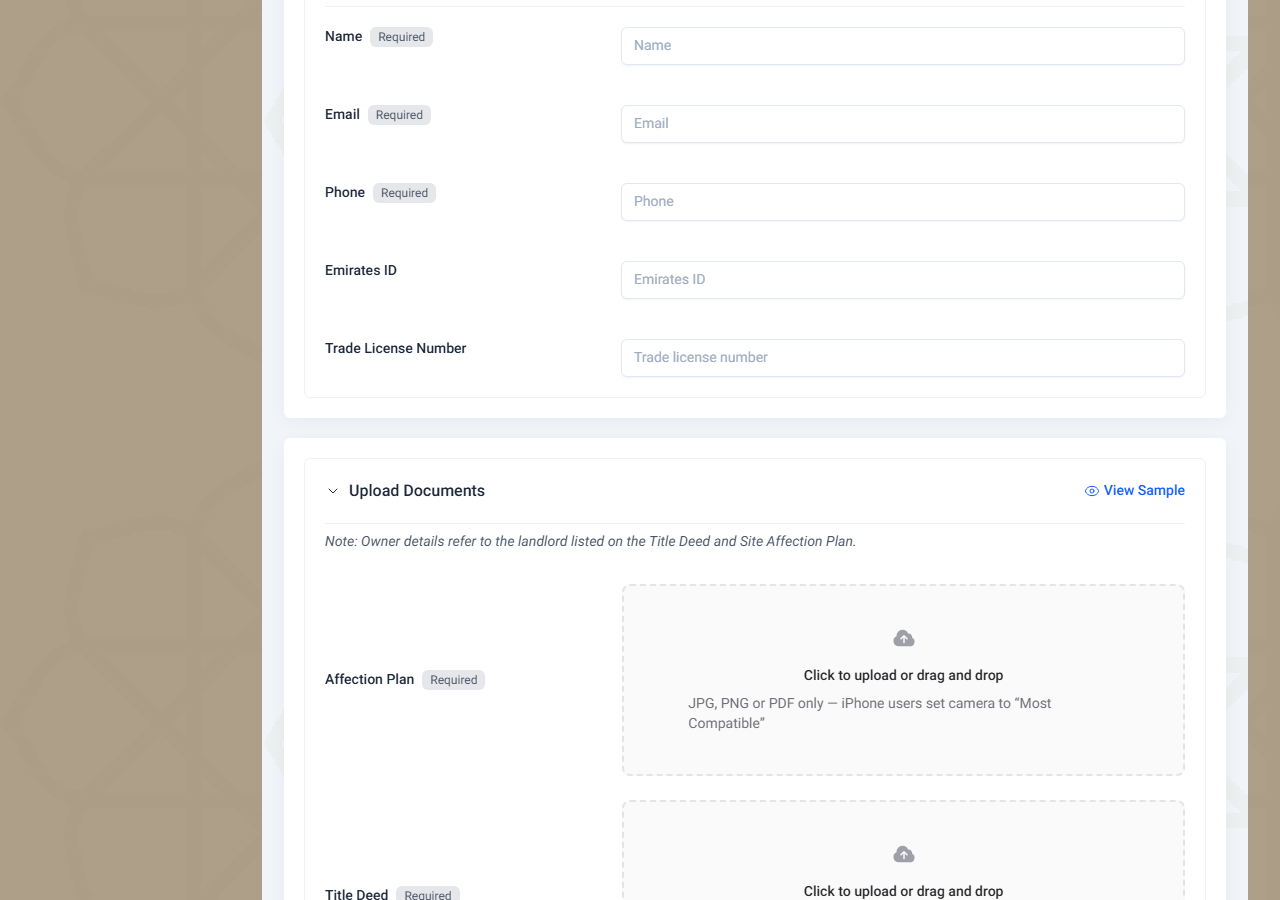
Enter the building owner's details:
- Name, Email, Phone — 971 format.
- Emirates ID — 784-xxxx-xxxxxxx-x format.
- Trade License Number — If applicable.
Note: Owner details refer to the landlord listed on the Title Deed and the Site Affection Plan.
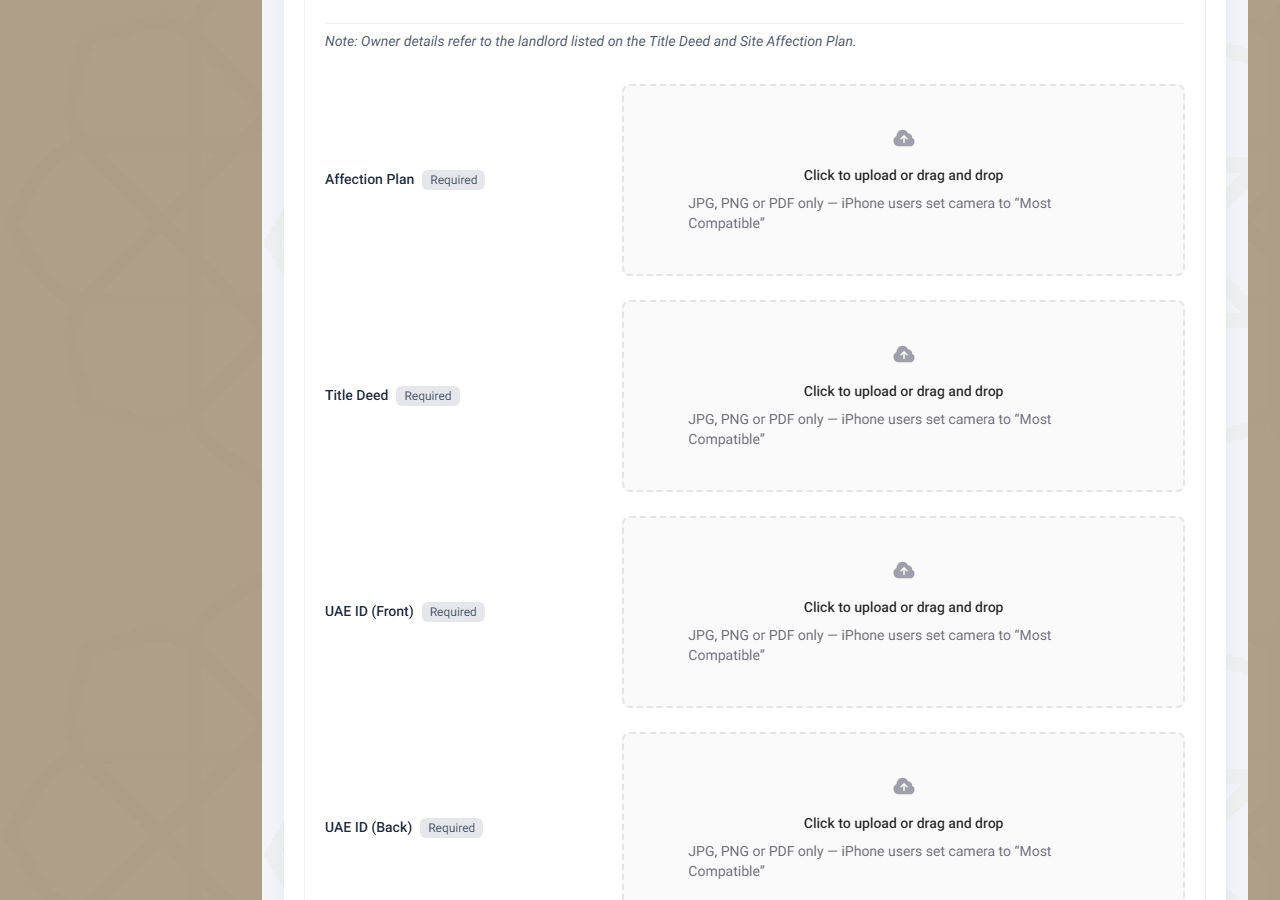
5. Upload Documents
Upload the four required documents:
- Affection Plan
- Title Deed
- UAE ID (Front)
- UAE ID (Back)
Note: JPG, PNG or PDF only, up to 10 MB each. iPhone users should set their camera to "Most Compatible".
Important: Each document is sent for verification with status "Pending" until it is reviewed by Weqayah. Once a document is approved, its upload box is removed.
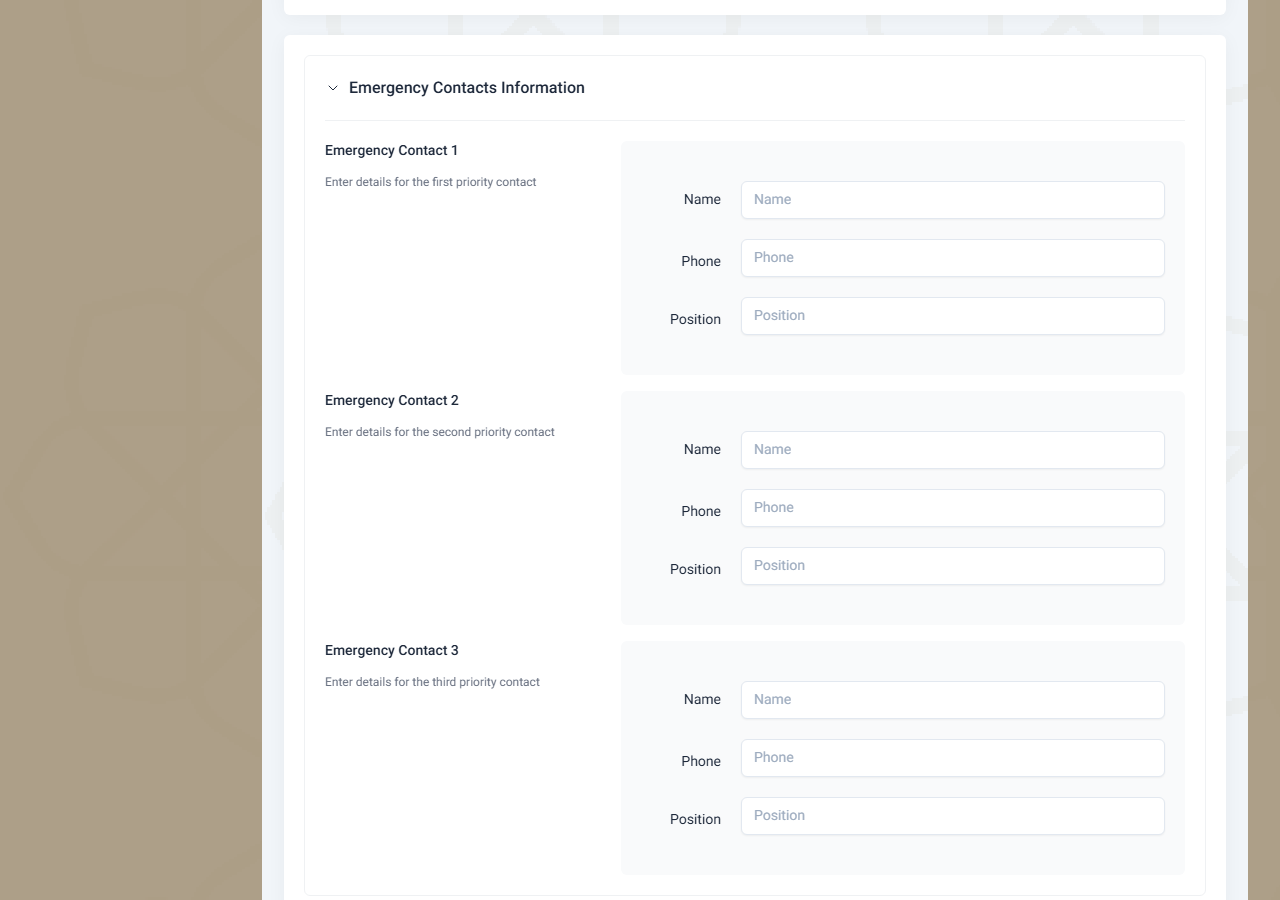
6. Emergency Contacts
Add three emergency contacts (priority 1, 2, and 3):
- Name
- Phone — Each contact must have a different phone number.
- Position
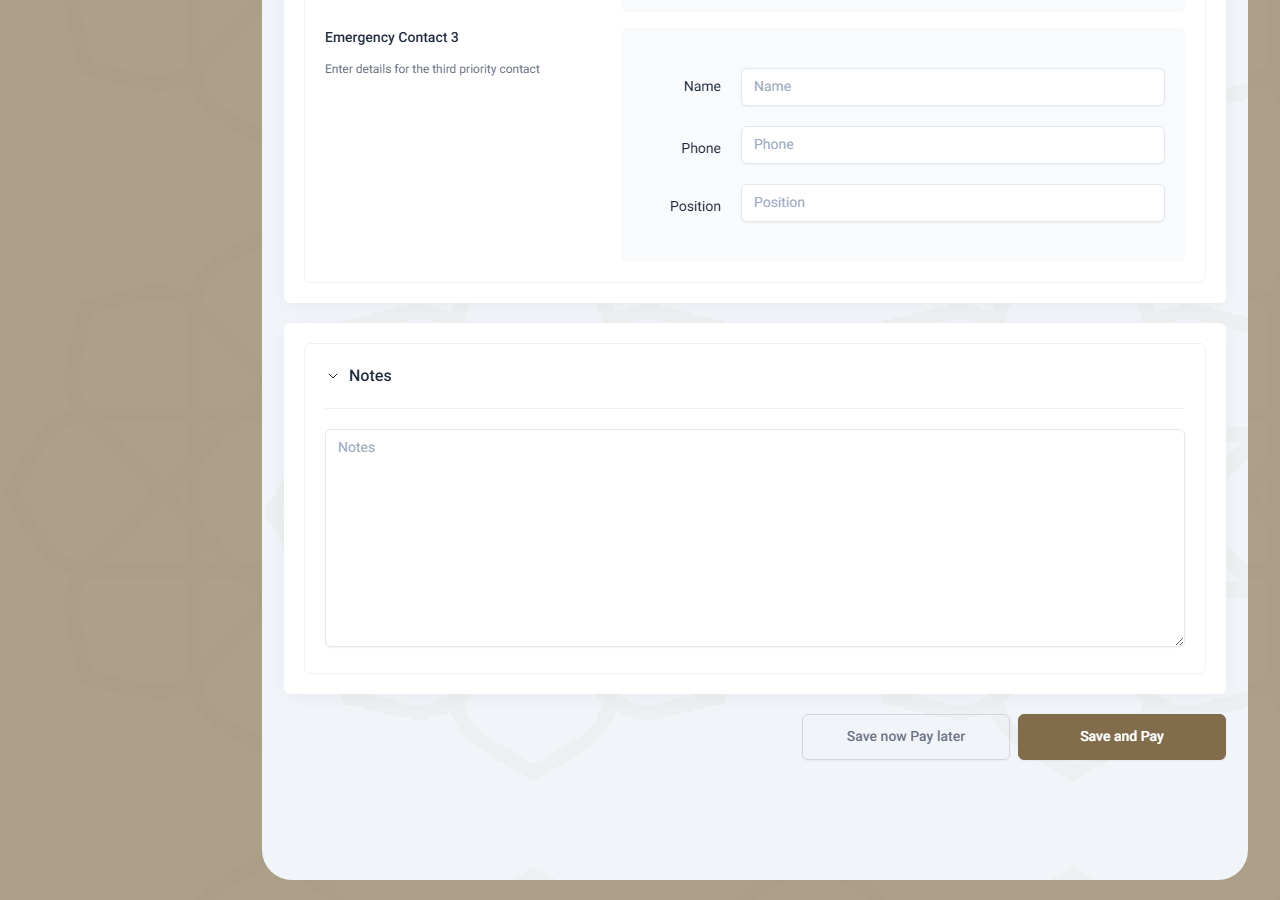
7. Review the Price & Submit
The price card on the side shows the total based on the number of fire panels. You then have two options:
Save and Pay
Save the premises and continue straight to payment.
Save now Pay later
Save the premises now and pay later from your premises list.
A Terms & Conditions window will open. Read it, tick the acceptance box, and click "Accept and Continue" to confirm.
8. After You Submit
- You will see a "Premises Added" confirmation and the building appears in your premises list.
- Your uploaded documents are reviewed by Weqayah. Their status changes from "Pending" to "Approved" or "Rejected".
- If you chose "Save and Pay", you will be taken to the payment page next.
- Once your payment is complete, your premises becomes ready for the installation visit to be scheduled.
Part 3: Payment
Before you pay
Please confirm that all the data you entered is correct. Weqayah does not take any responsibility in the case of incorrect data, and incorrect registrations will not be refunded.
1. Overview
Payments are calculated per fire panel. The main payment types are:
- Installation — The first-time supply and installation of the Weqayah equipment, plus inspection visits. Currently AED 4,200 per fire panel.
- Annual Renewal — The annual subscription renewal and periodic maintenance. Currently AED 1,575 per fire panel.
- Additional Visit — Extra inspection visits beyond the included ones. Currently AED 500.
Note: The total you pay is the per-panel price multiplied by the number of fire panels in your premises. Payment is processed through the official Ajman payment gateway (AjmanPay or Magnati).
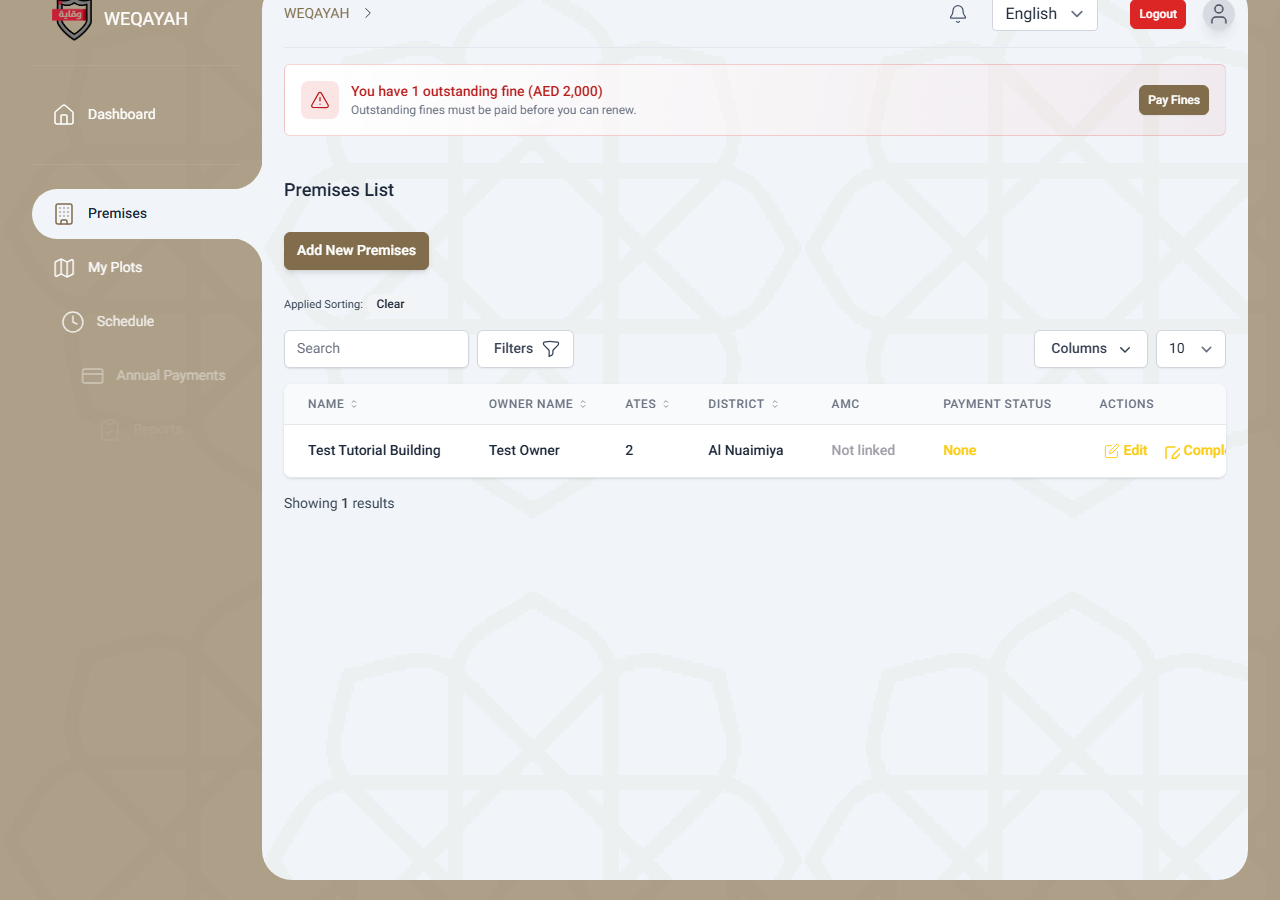
2. Start a Payment
Go to your premises list. Depending on the status of each premises, you will see one of these buttons in the Actions column:
- Pay — The premises is ready. Click to open the payment page.
- Complete & Pay — Some details or documents are still missing. Click to finish them first.
- Pay Annual Renewal Fee — Appears when your annual renewal is due soon.
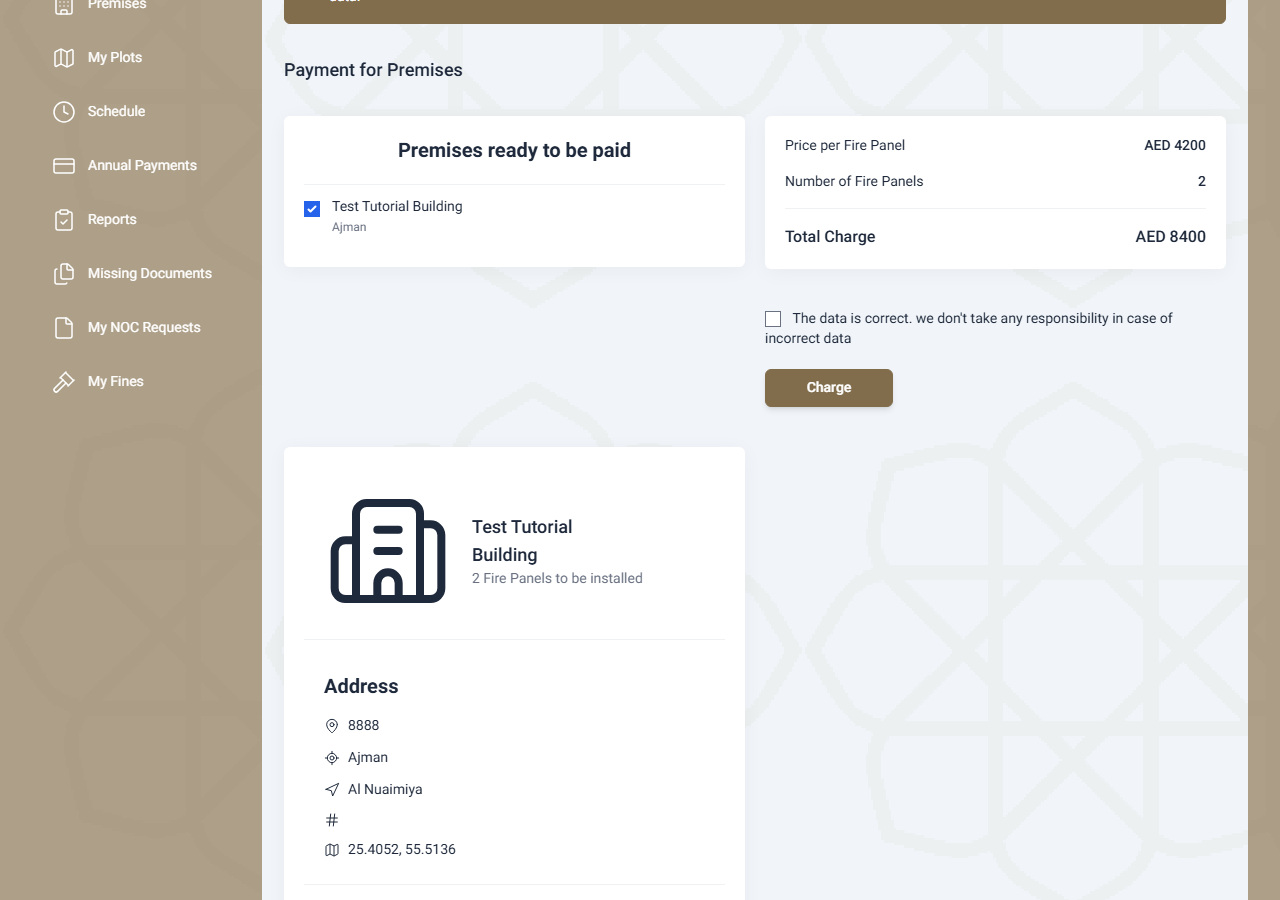
3. Select Premises & Confirm the Total
On the payment page:
- The left side lists your premises that are ready to be paid. Tick the ones you want to pay for now.
- The summary on the right shows the price per fire panel, the total number of panels selected, and the total charge.
4. Accept the Terms & Charge
- Tick the checkbox confirming that the data is correct.
- Click the "Charge" button.
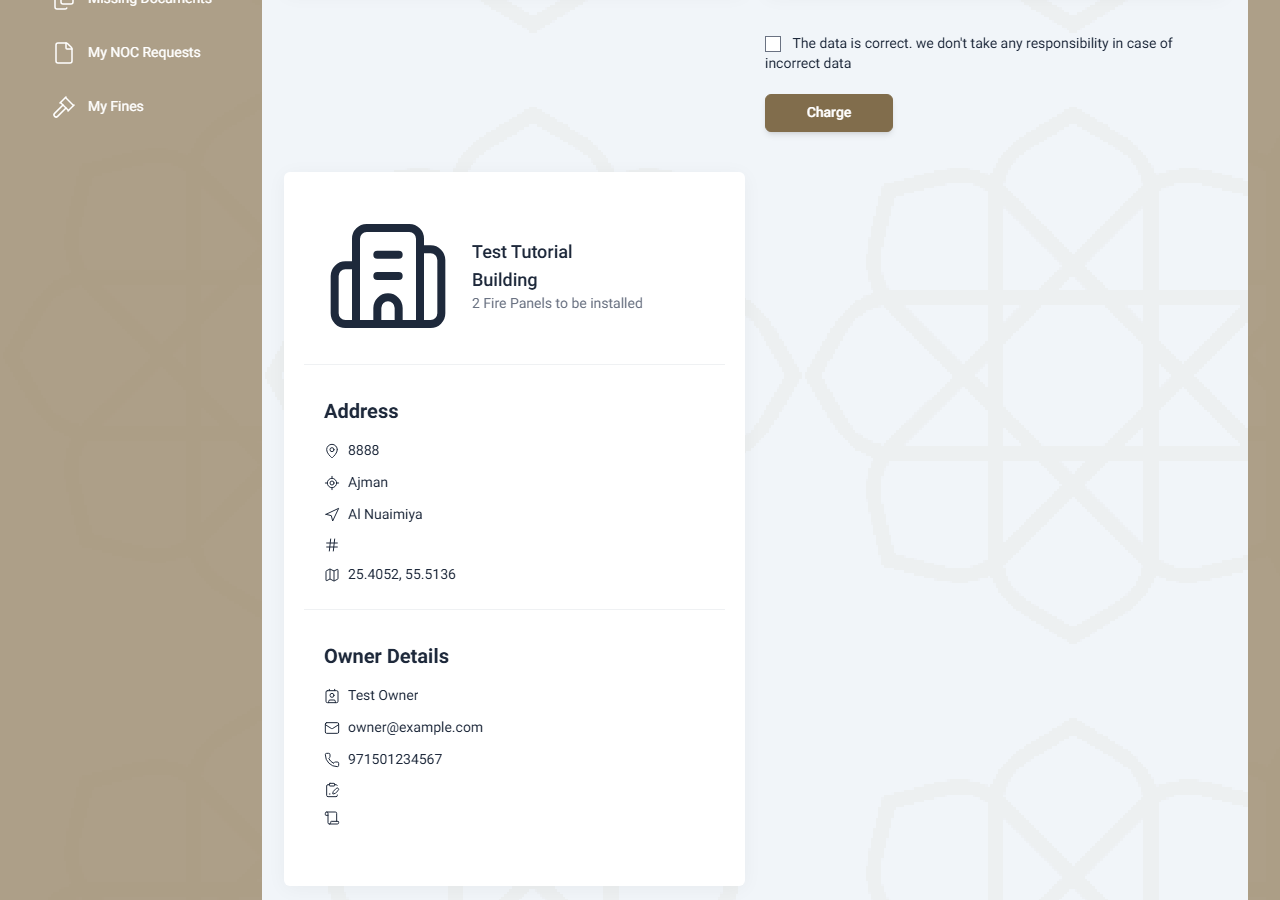
- You will be redirected to the payment gateway to complete the payment securely.
Note: If a payment is already pending for a premises, you will need to wait until it is resolved before starting another one.
5. Complete Payment on the Gateway
- You are taken to the AjmanPay or Magnati gateway. Enter your card or payment details there.
- After the payment is processed, you are returned to Weqayah automatically — do not close the window yourself.
6. After Payment
- Success — You see a "Payment Successful" message and receive a payment confirmation email.
- Installation — After paying for installation, you are taken to the scheduling page to book your installation visit.
- Receipt — You can download a PDF receipt for each payment from your premises record.
- Failure — If the payment fails, you see a "Payment Failed" message. No amount is taken and you can try again.
7. Annual Renewal
Every year, your premises subscription must be renewed. The "Pay Annual Renewal Fee" button appears on your premises list when the renewal date is approaching.
The renewal payment follows the same steps as installation: select the premises, confirm the total, accept the terms, and complete the payment on the gateway.
Frequently Asked Questions
I already have an account. Do I need to register again?
No. Click "Login" and sign in with your existing email and password. If you have forgotten your password, use the "Forgot Password?" link on the login page.
Why does it say my email or mobile number is already in use?
Each email, mobile number, and Emirates ID can be linked to only one Weqayah account. If you see this message, you most likely already have an account — try signing in or resetting your password.
I did not receive the verification email. What should I do?
Check your spam or junk folder. From the verification page you can request a new OTP to be sent to your email.
It says my premises already exists. What do I do?
A premises with the same plot/district or Parcel ID cannot be registered twice. If you believe this is your building, please visit the Weqayah office or contact the registration department for clarification.
The last 4 digits of my Parcel ID do not match my Plot Number. Is that a problem?
Yes. The last 4 digits of the Parcel ID must match the 4-digit Plot Number. Double-check both numbers on your official property documents and correct them before submitting.
What happens to documents after I upload them?
They are reviewed by Weqayah. The status starts as "Pending" and changes to "Approved" or "Rejected". If a document is rejected, you will be asked to upload it again.
How is the amount I pay calculated?
It is the per-panel price multiplied by the number of fire panels in your premises. Installation is AED 4,200 per panel and annual renewal is AED 1,575 per panel.
It says "A payment is already pending". What should I do?
A payment for that premises is already being processed. Please wait a little and try again. If the message persists, contact Weqayah support.
Can I get a refund if I registered the wrong building?
No. Incorrect registrations are not refunded. Please make sure all your details and documents are correct before paying.
Who should I contact for help?
For any questions or assistance, please contact Weqayah support:
Email:
info@weqayah.ae